Features
What NightInk does, by group. Things that are new in the latest update carry a badge.
Features without a badge have been there since earlier updates. All of them are in the latest version on the stores.
Security
Your password first, every time. Your diary is encrypted on your device the moment you write.
Locked on your device as you write
Everything is encrypted on your device before it is saved. Without sync, your diary never leaves this device.
Your password first, every time
The gate asks for your password every time the app opens. It locks itself after the time you set, and on a PC pressing Esc twice locks it at once.
On a phone it locks the moment you leave the app New
It locks as soon as you leave the app, and after the time you set (1 or 10 minutes) if you leave it open without typing.
Recovery key
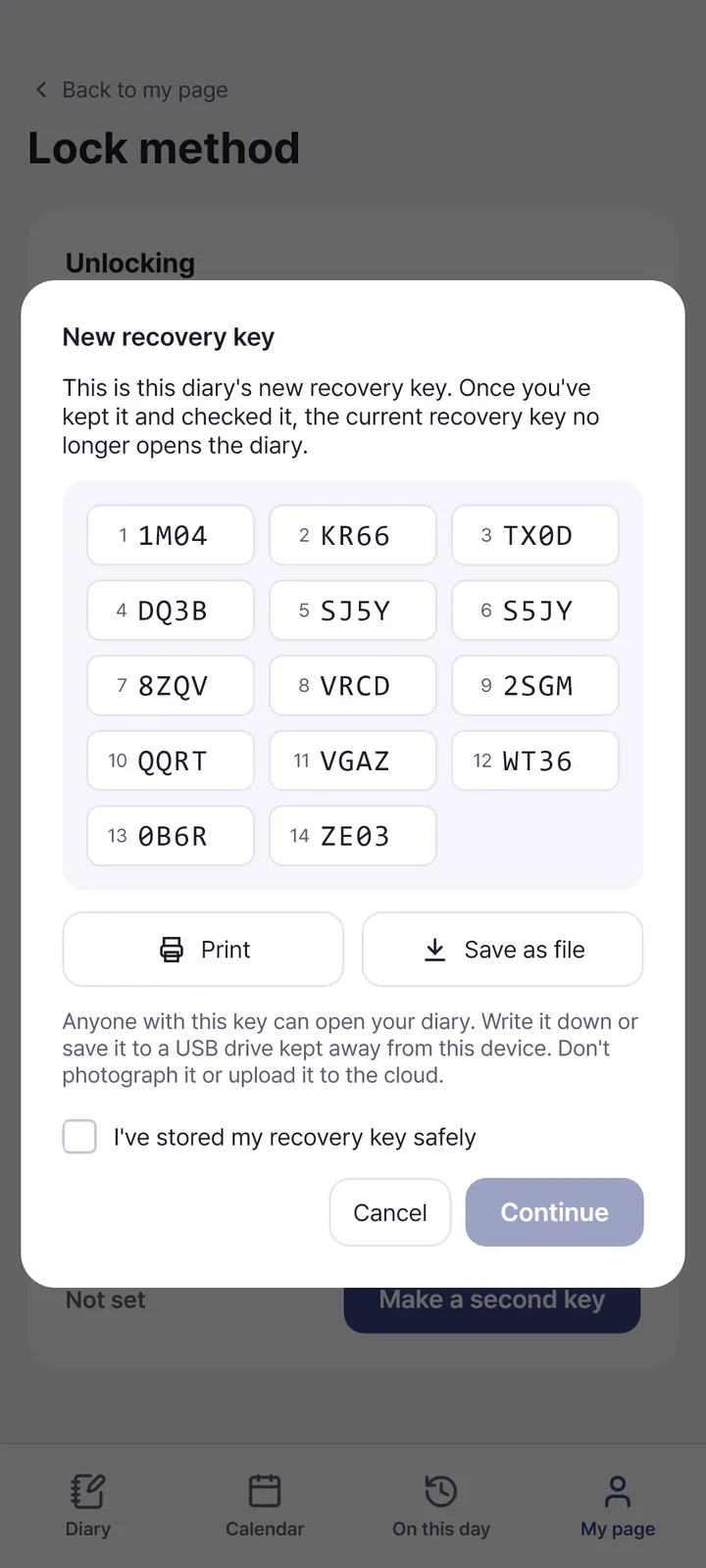
A 56-character key that opens your diary if you forget your password. Keep it on paper, away from your device. If you lose both, no one can open your diary.
Fingerprint and PIN (Android)
Turn on fingerprint unlock and PIN unlock (Android 9 and later). Every 7 days you open with your password.
Second key
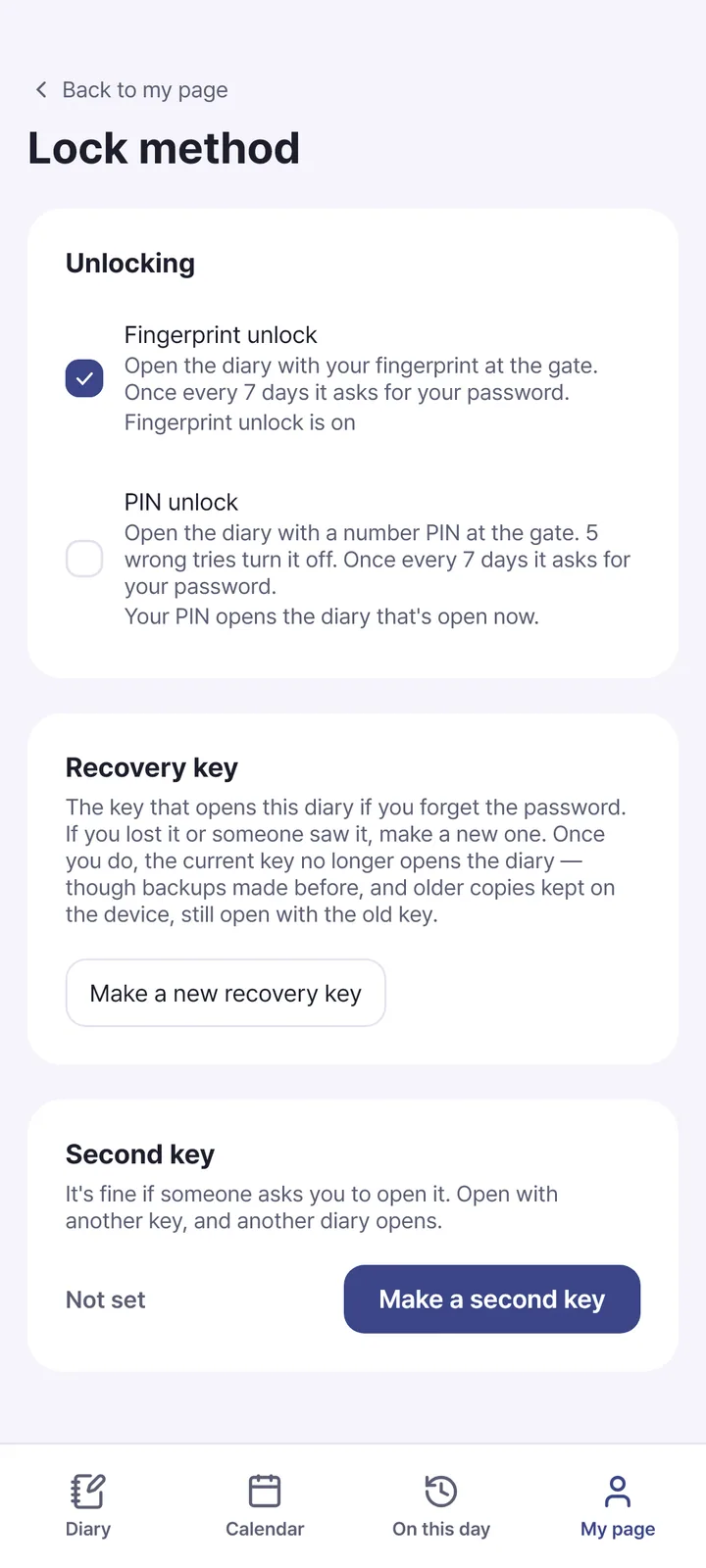
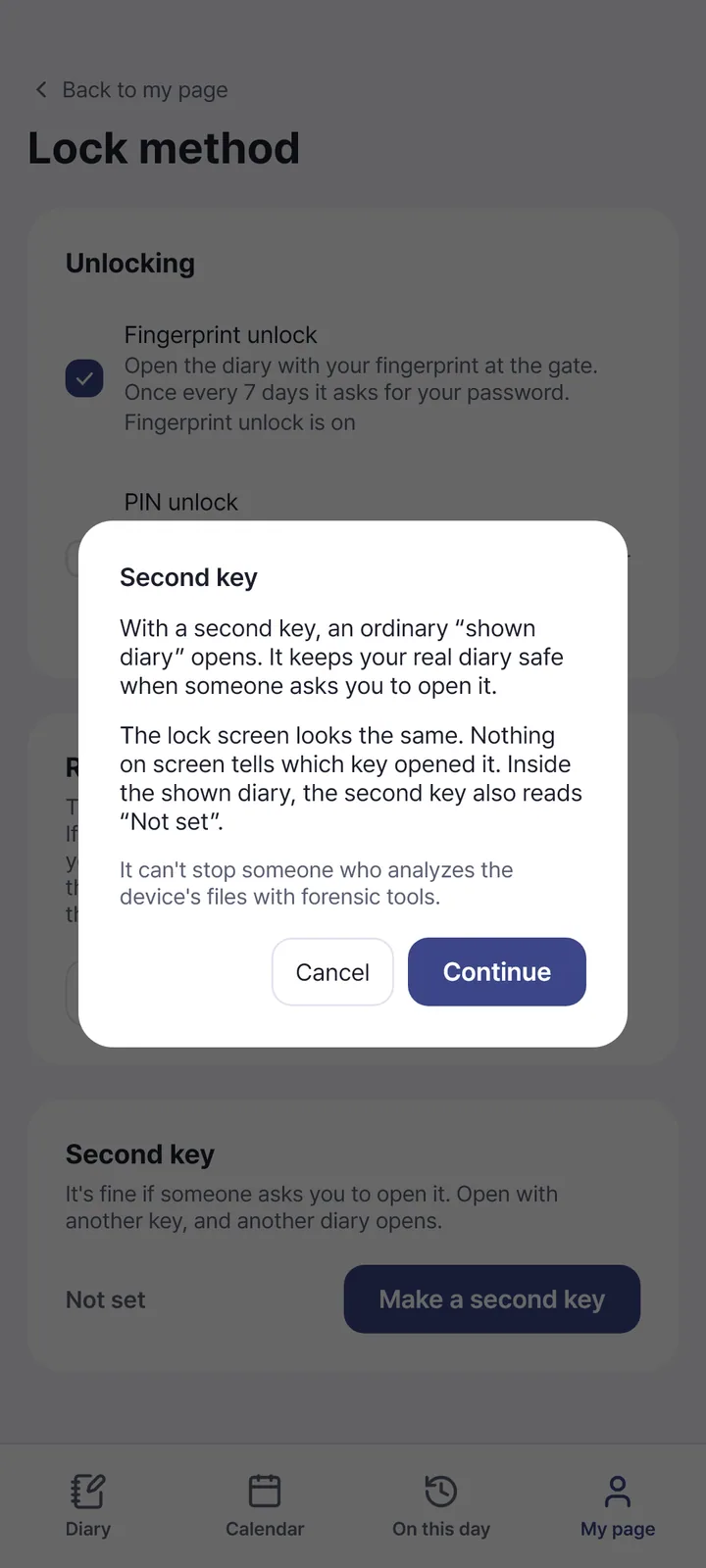
A different password opens a different diary — the one you can show. It protects the real diary when someone asks you to open it. Free, and it stays free.
Secure folders and hidden folders
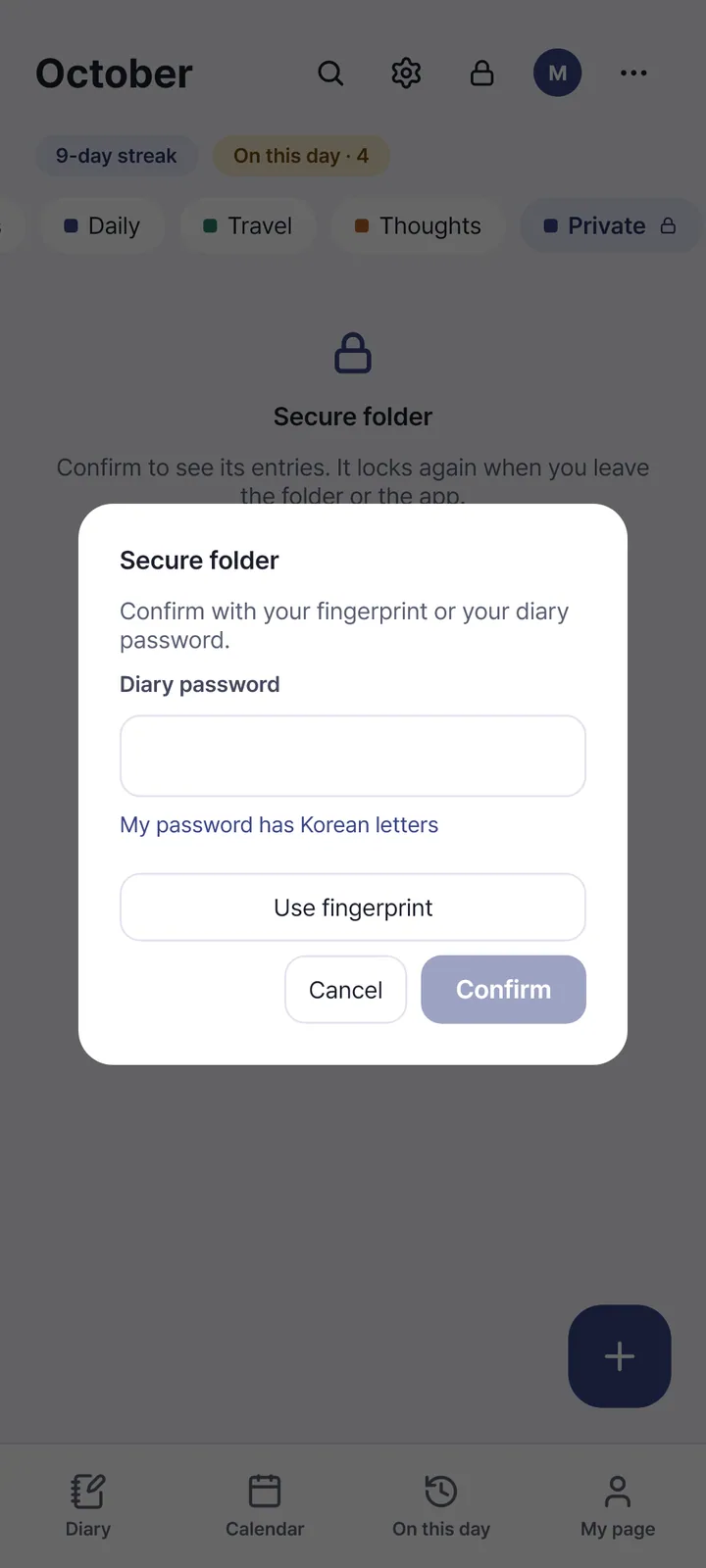
A secure folder asks for your fingerprint or diary password every time you open it. A folder hidden from “All entries” shows its entries only when you open it.
Screenshot blocking
The gate always blocks screenshots and screen recording. Once a diary is open you can turn it on or off per diary (Android 13 and later).
Password book
Passwords are encrypted on your device just like your diary. A copied username or password is cleared from the clipboard after a minute.
One-time codes (OTP) in the password book
Paste the key a service gave you and a 6-digit code changes every 30 seconds. The code is hidden at first; tap the eye to show it for 30 seconds.
One line without unlocking
Turn it on and the Android home widget and the daily reminder get a “Write one line” button. It does not ask for your password and shows nothing of your diary.


Writing
It saves as you write, with ways to organize and look back.
It saves as you write
No save button needed — a second after you stop, it saves itself, encrypted. It also saves what is left when you switch entries or lock.
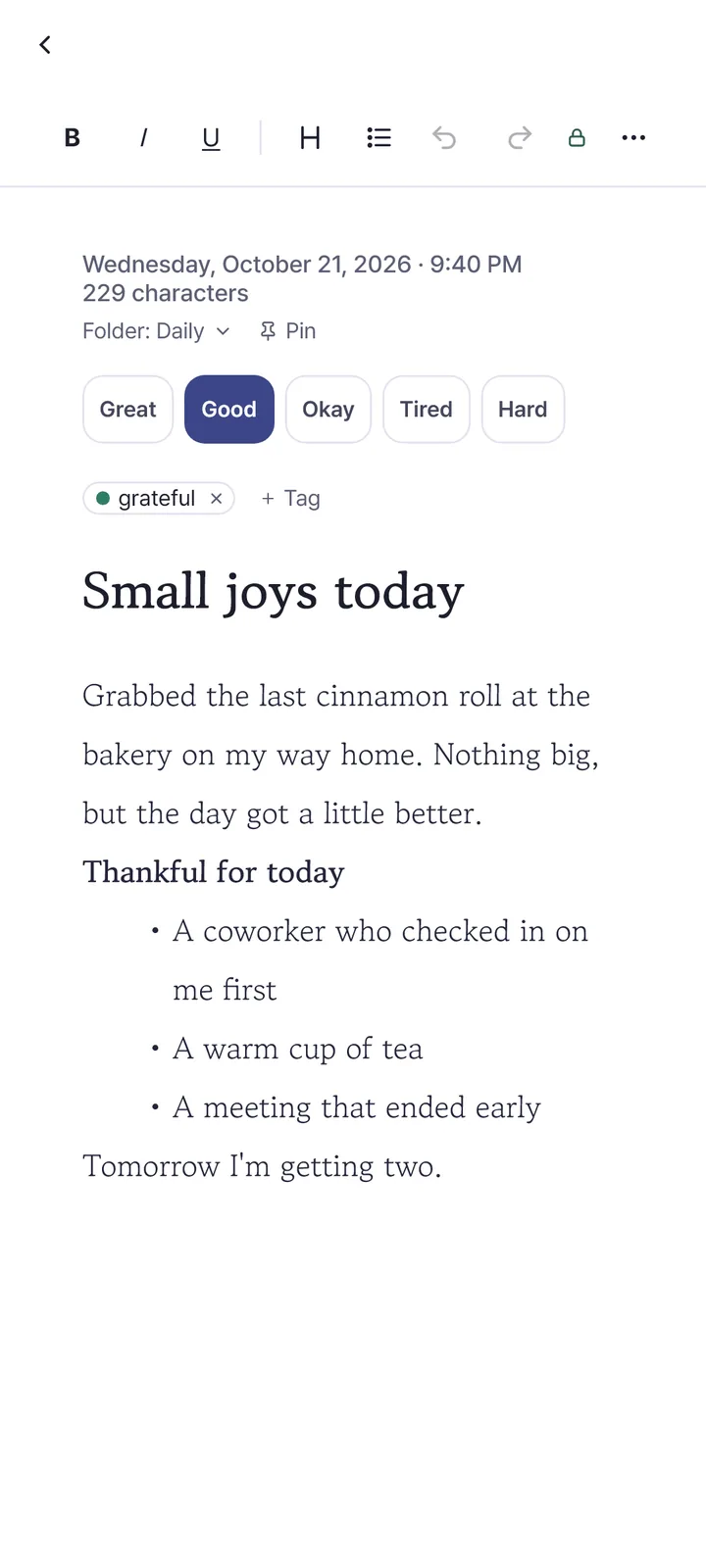
Folders, tags, pins, sorting and search
An entry lives in one folder and takes several tags. Filter by mood, tag, folder and period, and sort by date, last edit, title or by hand.
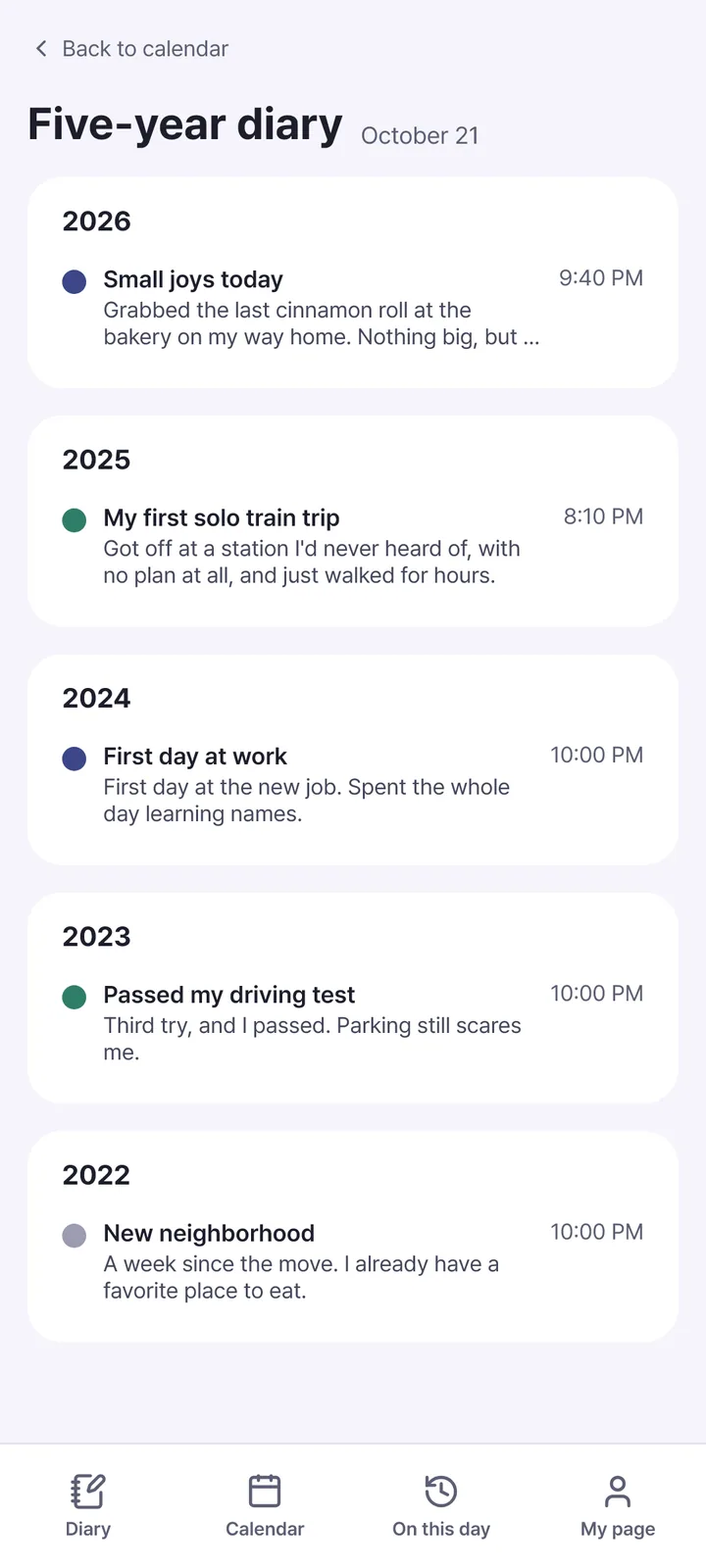
Calendar, one year ago today, five-year view
The calendar shows each day’s mood and lets you write for a past day. Entries from the same date across the years gather on one screen.
Checklists and numbered lists
Add a check item while writing and a box (☐) appears at the start of the line. There are also checklist-only entries.
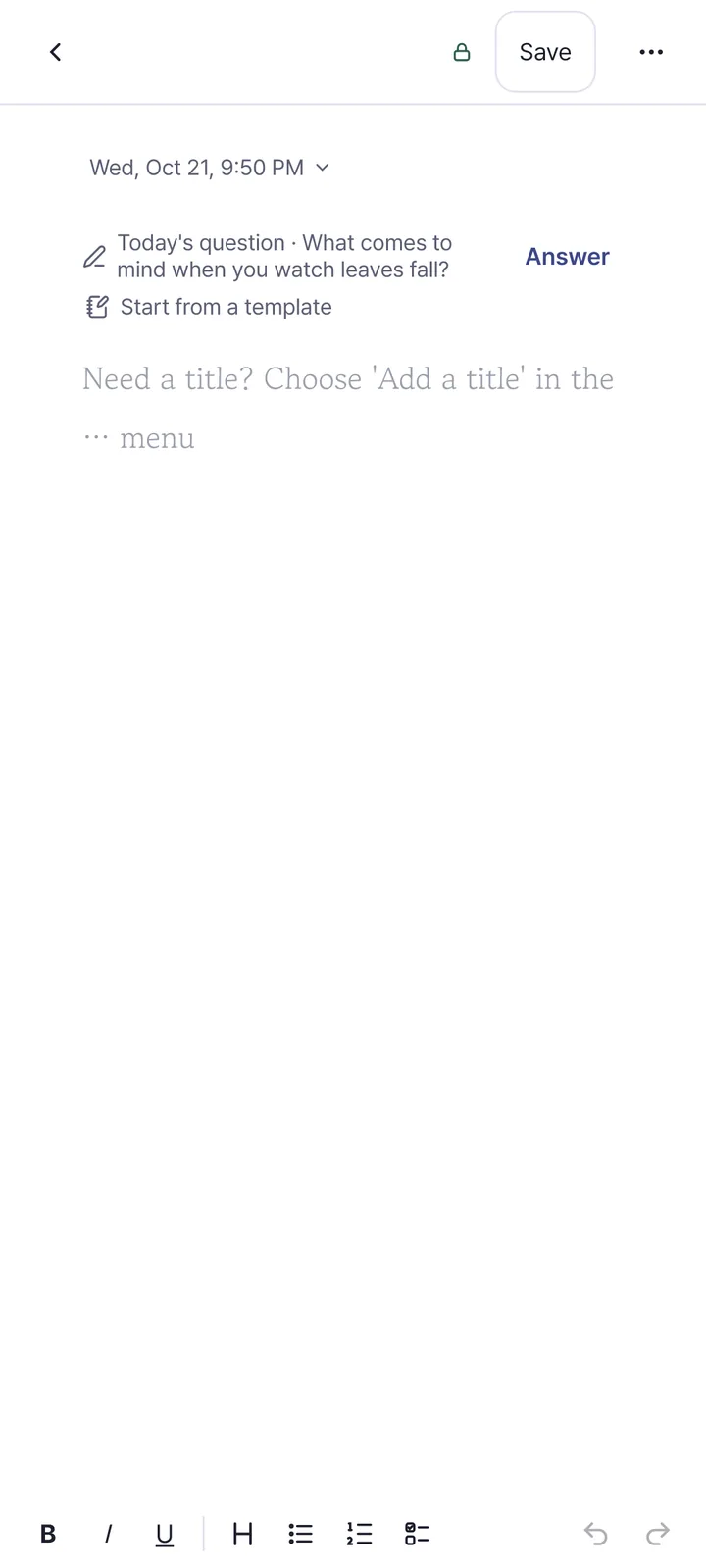
365 daily questions
Turn it on and one question for the day appears above a new entry. Press “Answer” and it becomes a heading in your entry.
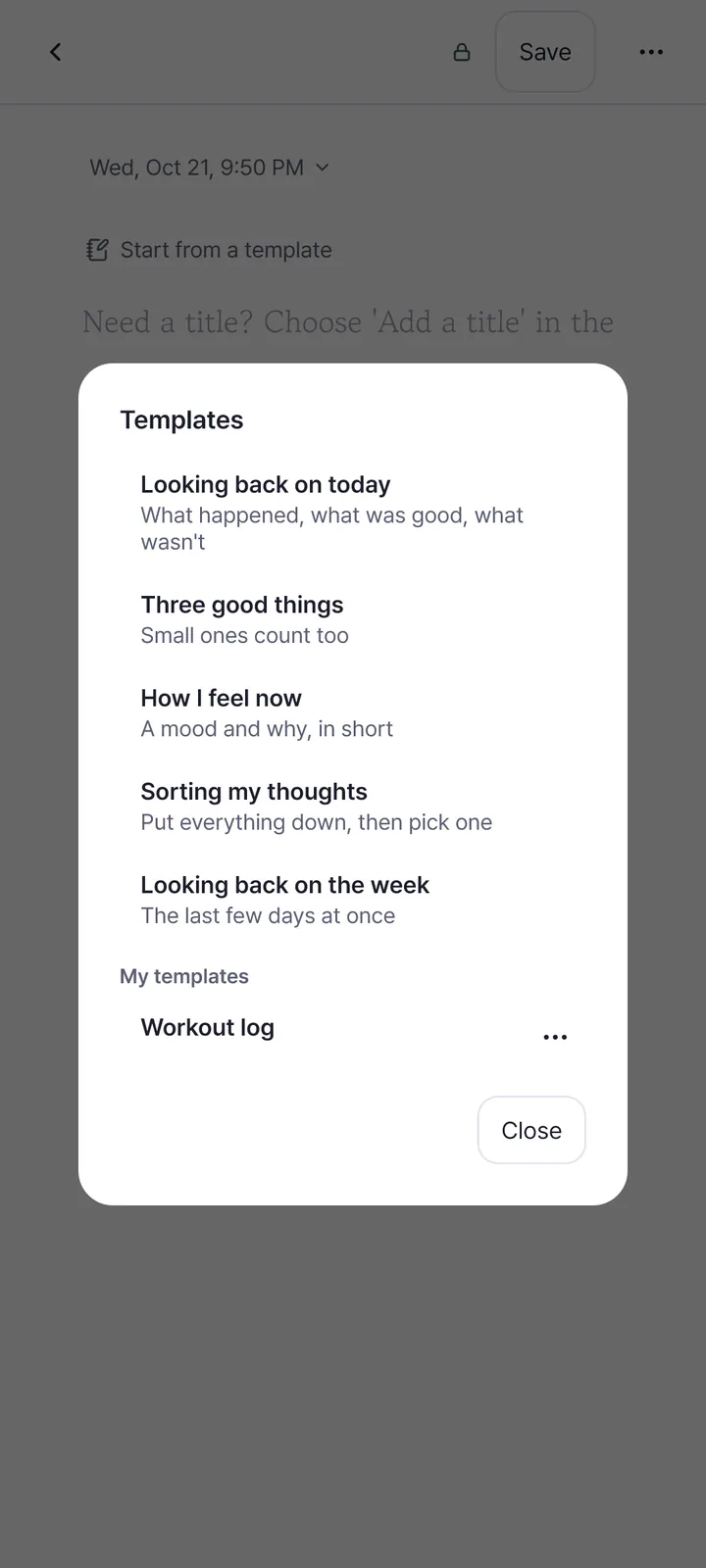
49 templates
Swap between templates like “Look back on the day” even over what you wrote, preview them, pick a short version, and set a default for new entries.
9 work and docs templates New
Dev notes, bug and issue log, design memo, code snippets, today I learned, document notes, weekly work summary, project checklist and a plain note.
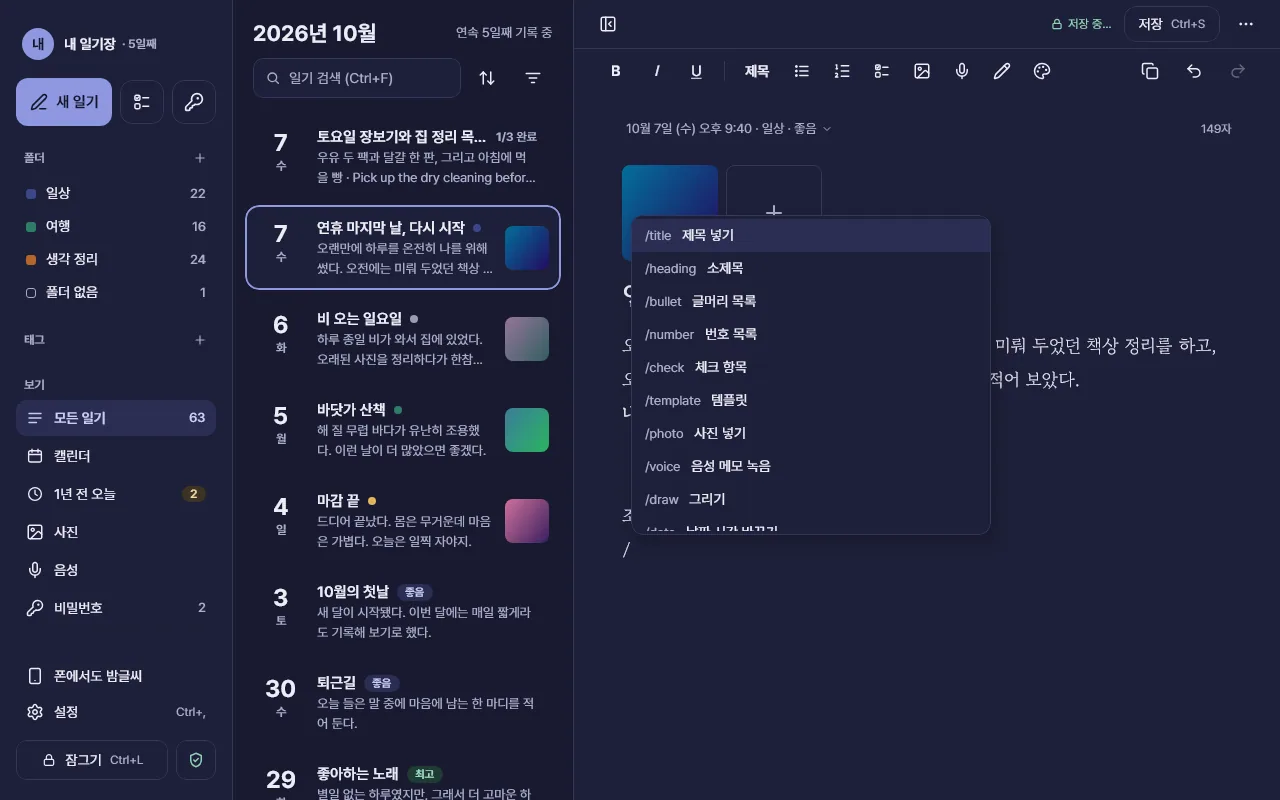
Call features with slash commands New
Type / at the start of a line for a list of commands. Korean names work too, and commands this device cannot do are not listed.
App screen shown in Korean. Code formatting New
Write several lines in a fixed-width font as one block. Indentation stays as typed, and Markdown export turns it into a ``` block.
Clear the page New
Clear just the words and start again. One undo brings them back, and a “(before clearing)” copy also stays in the trash.
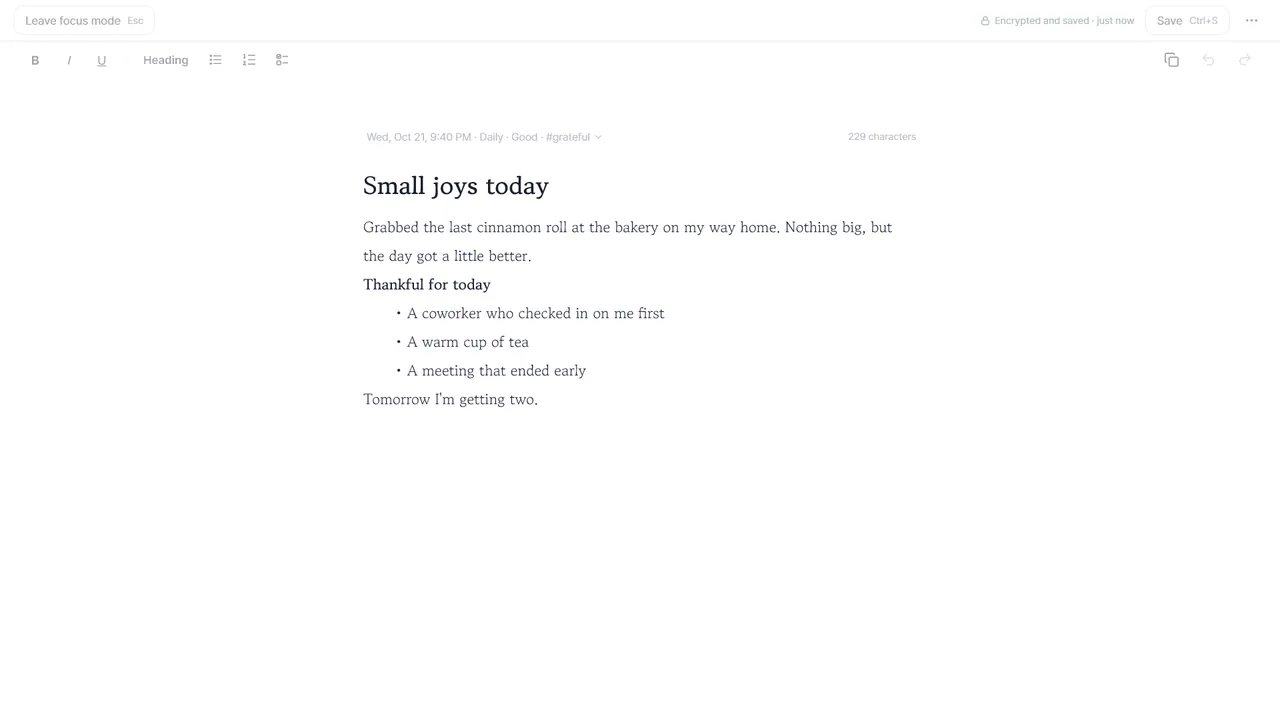
Focus mode
The menu and list disappear and only the editor fills the screen, with the line you are writing kept in the middle.
Time capsules
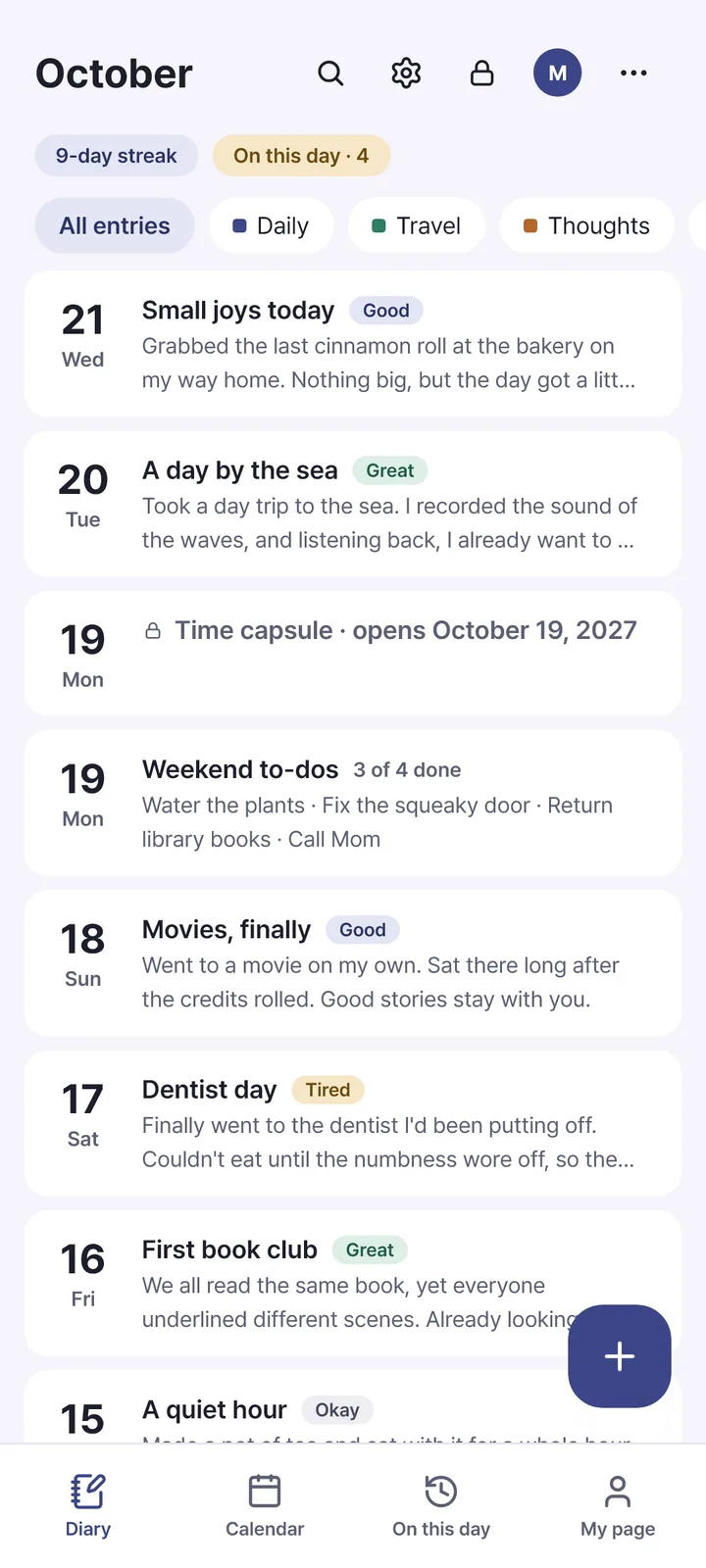
An entry you promise not to read until a day you choose. Its title and words stay hidden until then, and it becomes an ordinary entry on that day.
Year in review
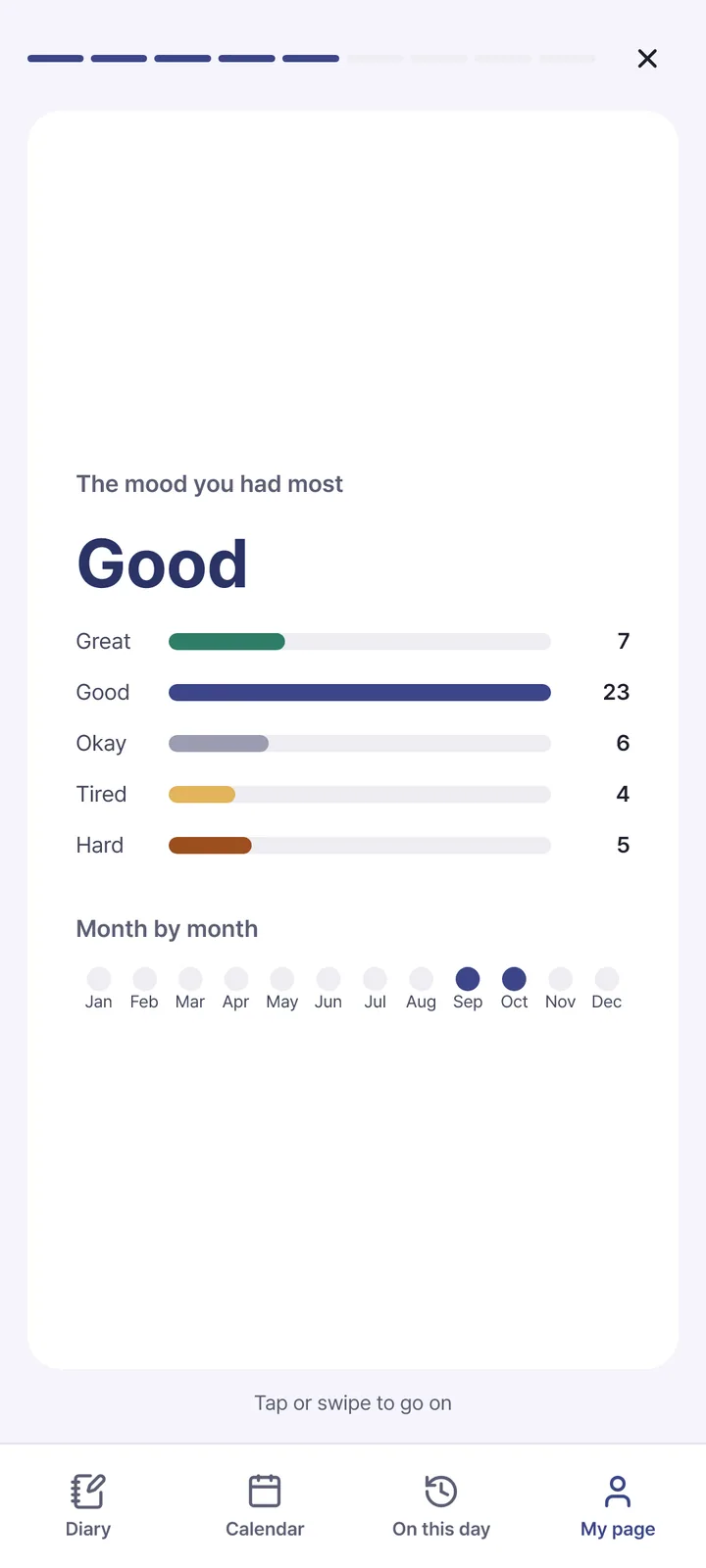
Flip through cards of days written, entries, words, moods and your most-used folders and tags. Everything is counted on your device.
Daily reminder and widget
One reminder a day at the time you choose. Neither the reminder nor the Android home widget shows any of your diary.


Decorating
Pick a border and paper for each entry, and add stickers.
12 borders, 5 papers and stickers
Pick a border and paper per entry and it applies at once. Stickers (emoji and decorative lines) go in as text at the cursor, up to 30 per entry.
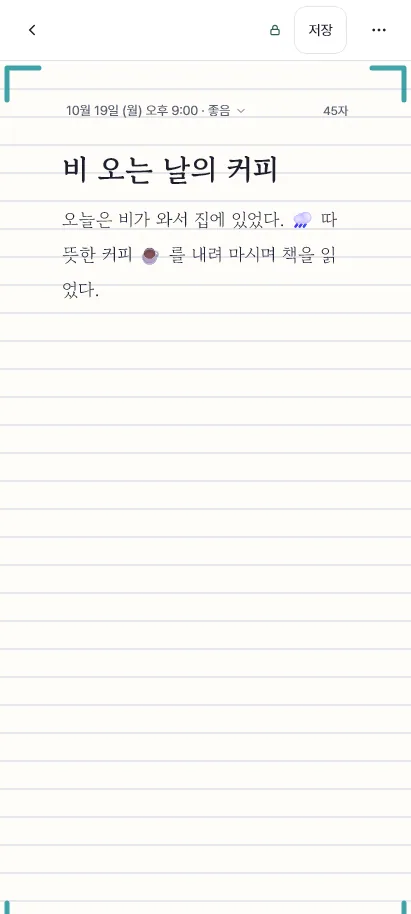
App screen shown in Korean. 4 themes and dark mode
Change the app’s colors with a theme, and write on a dark screen at night.
Decorated templates
Templates marked “border and paper too” bring a matching border and paper along. A decoration you chose yourself is never overwritten.

Attachments
Photos, drawings, voice and files are encrypted along with the entry.
Photos
Up to 10 per entry. They are shrunk on your device, stripped of location and device info, and encrypted.
Original quality, save, copy and paste for photos New
Add photos in original quality, save or copy them, and paste photos copied from other apps. Location info is still removed.
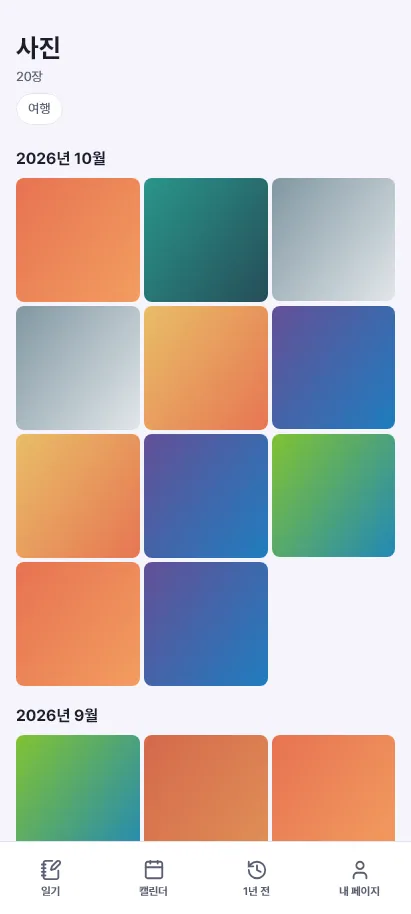
Photos by month and copy words from a photo
See photos from all entries gathered by month. On Android you can copy the words inside a photo; the photo and the words never leave your device.
App screen shown in Korean. Voice memos and dictation
Record sound into an entry (up to 5 per entry, 10 minutes each). The microphone is used only while you record. Dictation runs on your device and appears on Android 13 and later.
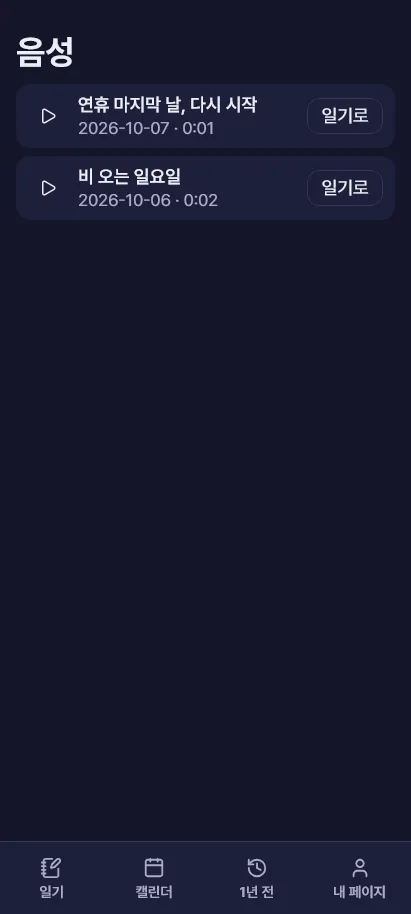
All voice memos in one place New
Voice memos from every entry are gathered, newest first, so you can play them or open the entry they belong to.
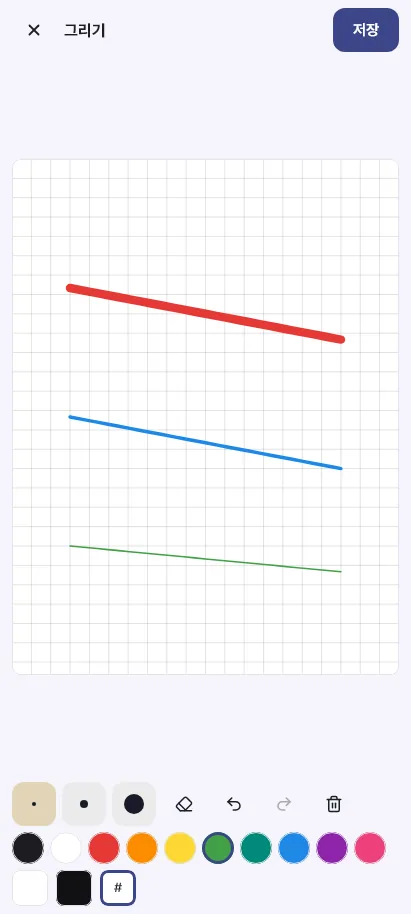
App screen shown in Korean. A new drawing toolbar New
Pick a pen, marker, highlighter or eraser and a color, change the thickness, zoom with two fingers (Ctrl+wheel on a PC) and choose white, black or grid paper.
App screen shown in Korean. Attach any file New
Put documents, archives and other files in an entry — up to 1 GB each and 10 per entry. They are encrypted on your device, and the app never opens or runs them.
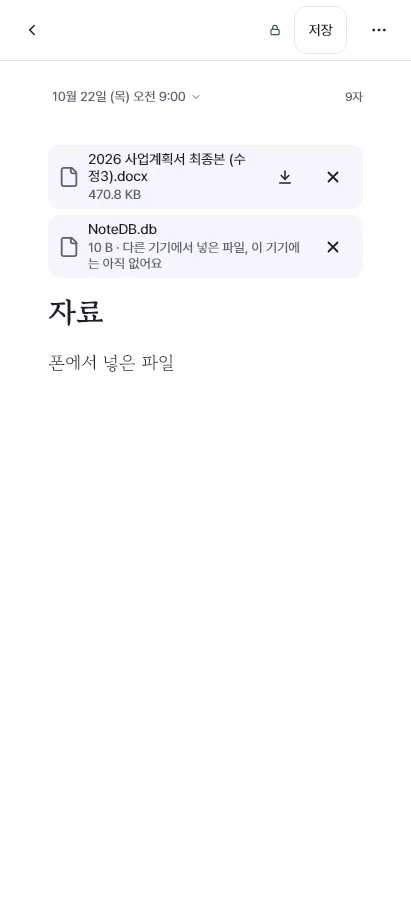
App screen shown in Korean.


Sync
Optional. Turn it on and your phone and PC share one diary — the server only holds ciphertext.
The same diary on your phone and PC
Sign in with the same email and both hold the same diary. It syncs right after saving and when another device changes. If two devices edit the same entry, nothing is overwritten — both versions are kept.
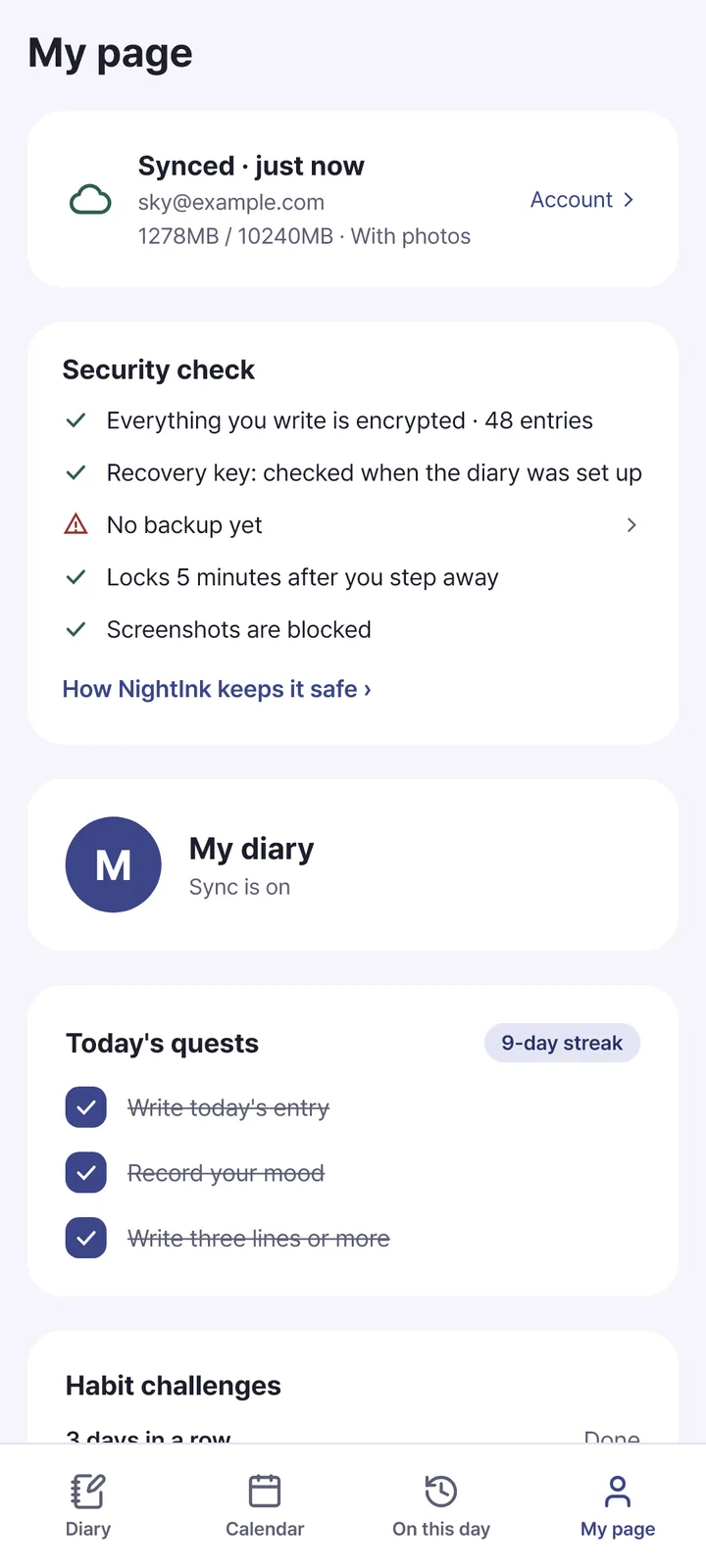
Not even the server can open it
Your diary is encrypted on your device before it is uploaded. The server only holds ciphertext and keys locked with your password and recovery key, so we cannot read it either.
Bring your diary to a new device
On the first screen of a new device, sign in with your email and enter your diary password once to receive your diary.
Only sync is a subscription
Everything on your device is free. Sync is a plan; the first month is free for a Google account that subscribes for the first time, and you can cancel any time. Your diary on the device stays when a plan ends.
Emptying the trash frees server space at once New
Press “Empty trash” or “Delete forever” and the files are removed from the server right away and the space comes back.
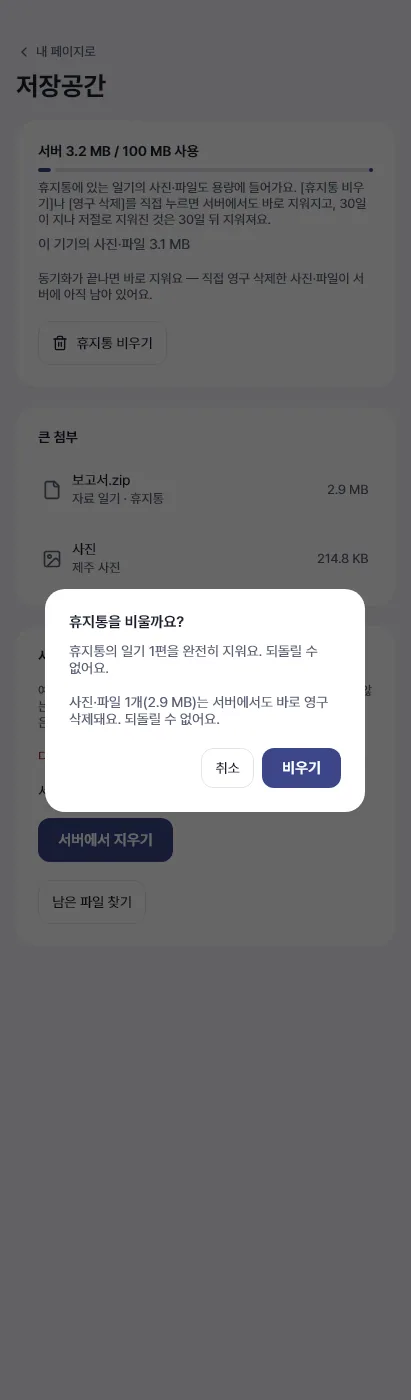
App screen shown in Korean. Storage screen New
See what takes up space and clean up files that remain only on the server, such as photos you deleted long ago.
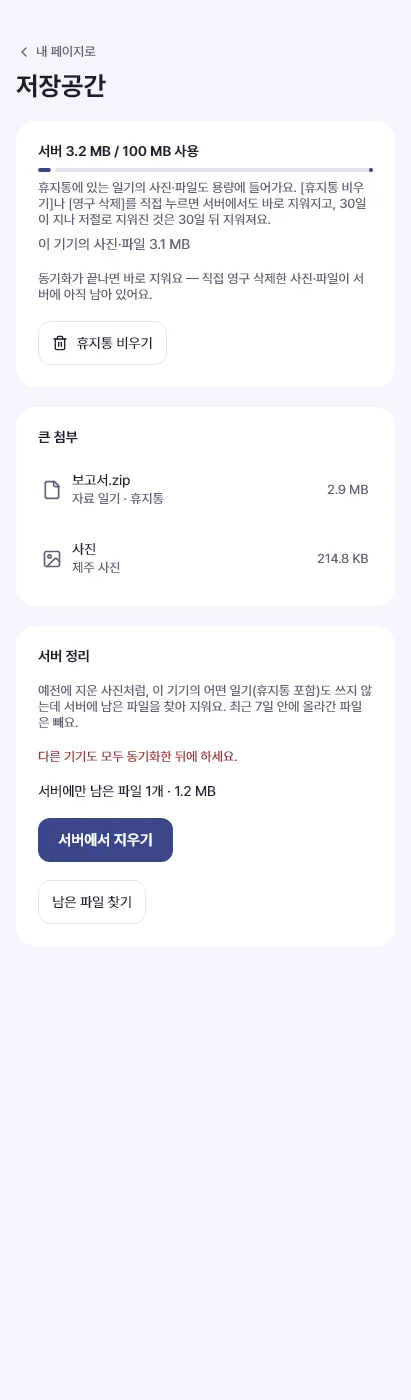
App screen shown in Korean.

Import and export
We never block the way in or the way out.
Encrypted backup
A backup file (.nightink) stays encrypted. A PC makes an automatic backup once a day when something changed and keeps the latest 7. It always works, with or without an account.
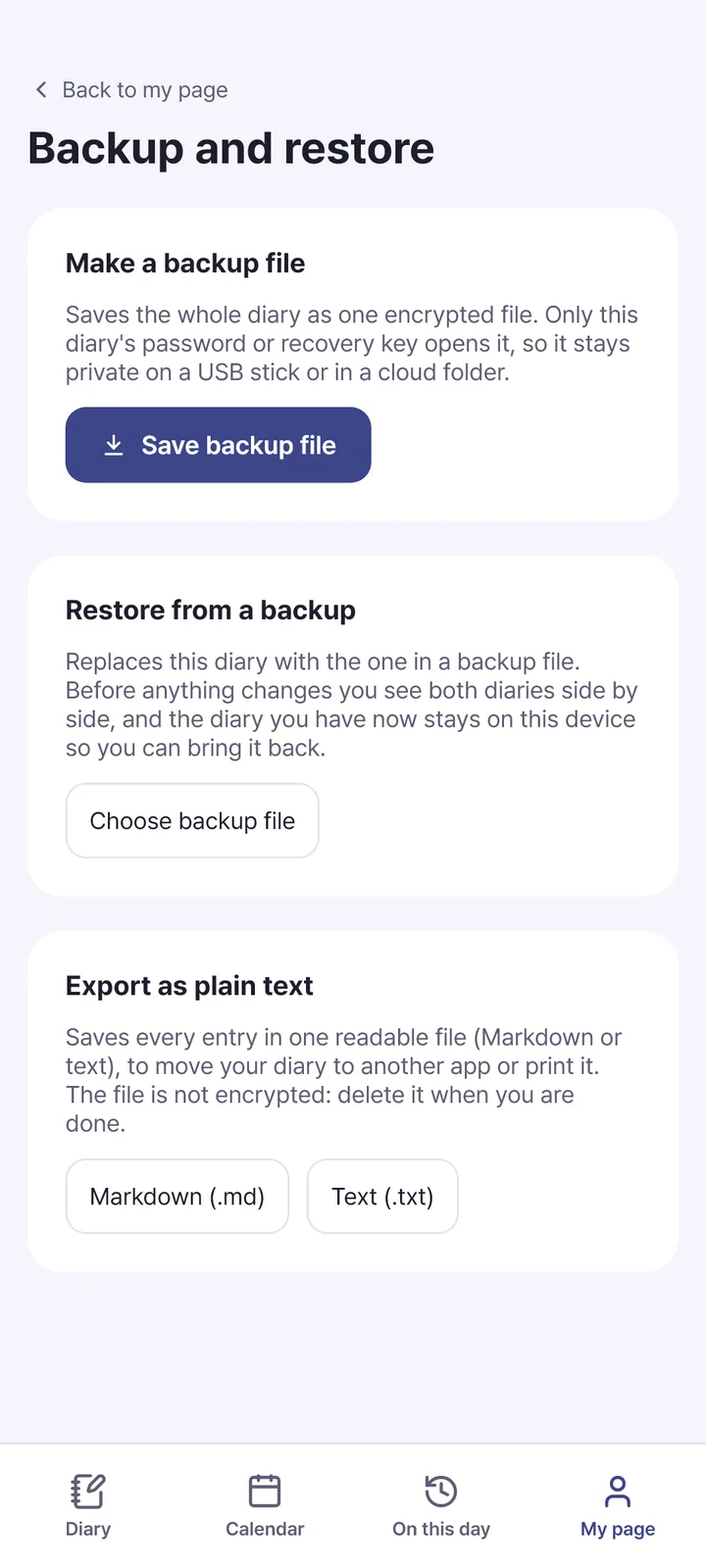
Export as Markdown, text, PDF or a bundle
Choose the period, folder and tags. Exported files are not encrypted, so the app reminds you to keep them only where needed and delete them afterwards.
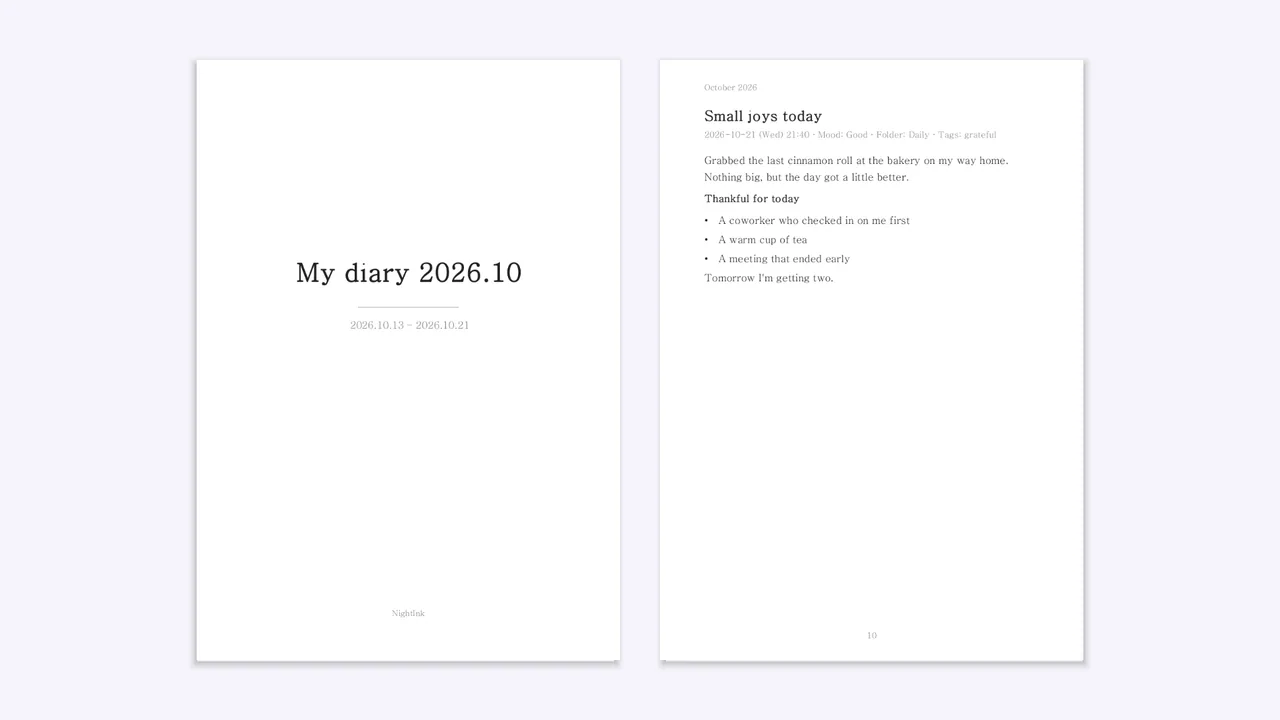
Diary book PDF
Make a book-style PDF with a cover, a chapter for each month, a new page for each entry and page numbers. Choose the font (serif or sans) and size (A5 or A4).
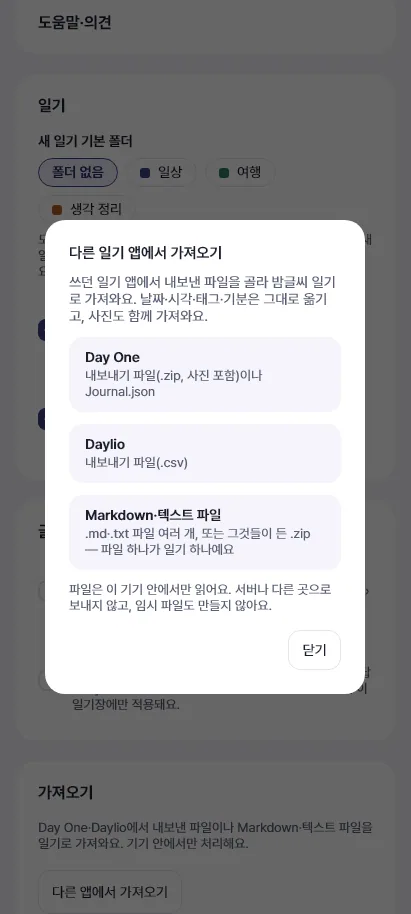
Import from another diary app
Reads Day One, Daylio, Markdown and text files. The file is read only on this device and sent nowhere. Importing the same file again never doubles entries.
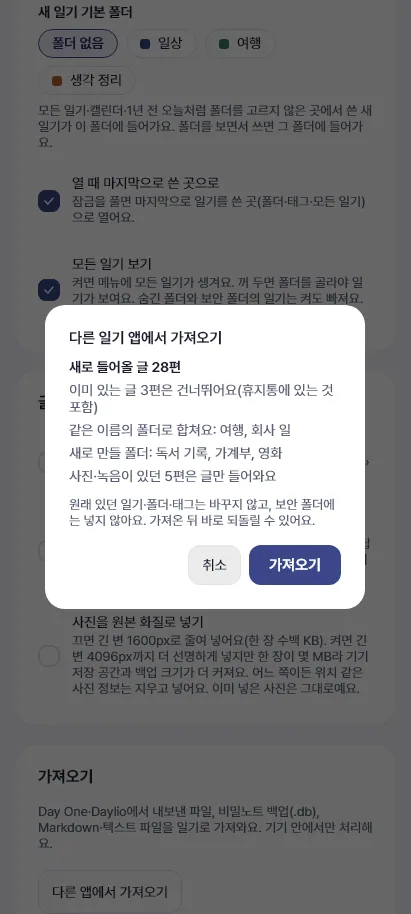
App screen shown in Korean. Import preview and undo New
Before importing, the app shows what is new and what is already there, and nothing comes in until you press “Import”. Afterwards “Undo everything imported” removes just what that import brought in.
App screen shown in Korean. Import from Secret Note (비밀노트) New
Notes, folders, tags, checklists and pins come in from a Secret Note backup (.db) file. Photos, recordings and text color do not carry over.
Import a bundle (zip) again New
Importing an exported bundle brings back just the words (not moods, pins, photos or voice). To keep everything exactly, use the encrypted backup.


More comfortable on a big screen
Faster ways to write on a PC, an unfolded foldable or a tablet.
An ordinary window title and icon (Windows)
A privacy setting. When on, the name on the taskbar and Alt+Tab, the window and tray icon and the reminder title change to an ordinary name and icon. It is off at first.
Keyboard shortcuts
Ctrl+S save, F11 focus mode, Ctrl+\ hide or show the list, Ctrl+, settings, Ctrl+Shift+C copy everything, Ctrl+Shift+K password book.
Unfolded foldables and tablets
Pin the menu, list and entry as three panes, or hide the list to give the entry the whole screen.
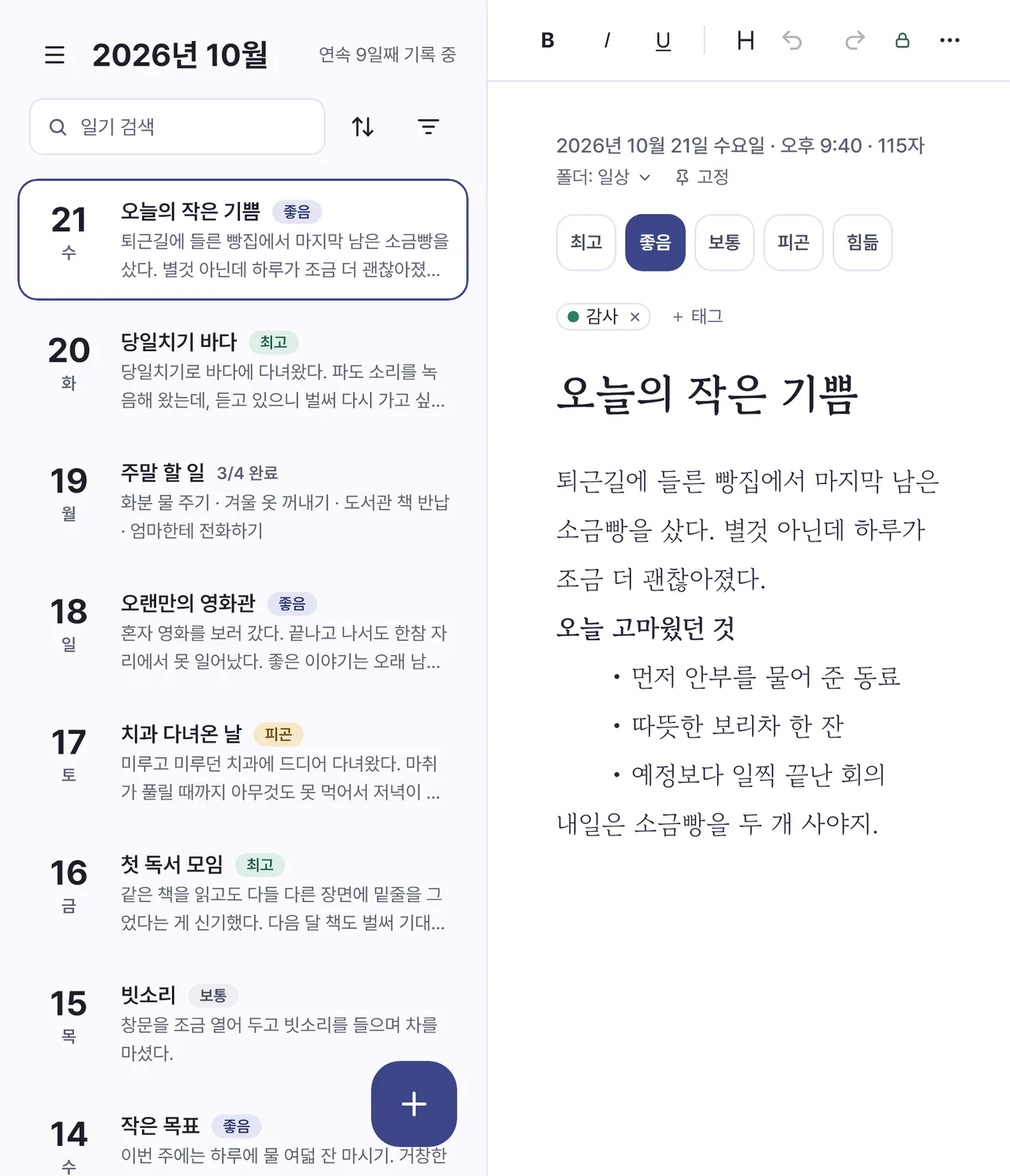
App screen shown in Korean. Right-click menu and more shortcuts New
In the list, Ctrl+A selects all, Delete moves to the trash and Ctrl+Z undoes it. A right-click menu and the mouse back and forward buttons (Alt+←/→) work too.

Trash and safety nets
Things that keep you from losing your diary.
30-day trash
A deleted entry stays in the trash for 30 days so you can restore it any time. “Undo” appears right after deleting.
A copy before every update
The first time you open after an update, before the gate, the app keeps a copy of your diary file on the device (the latest 3), still encrypted.
Delete your server copy or your account
You can delete your diary and photos on the server or delete your account. The diary on this device stays.
My page › News New
Once a day it checks for news (and, on a PC, for a new version). It sends nothing — not your diary, and not your device, installation, version or language — and shows no pop-up. Unread news appears as a dot on the icon, and you can turn it off in Settings. NightInk never asks for your password or recovery key in a notice or an email.
Accessibility
Easy to read and write with large text and in the dark.
Large text
Screens do not get cut off when you enlarge the device text size. Buttons and fields grow with the text and wrap onto two lines when narrow.
Dark screen
Dark mode keeps your eyes comfortable when you write at night.
Screen readers do not read out one-time codes
Screen readers do not read the digits of a one-time code, and the key field stays hidden until you press the eye button.